

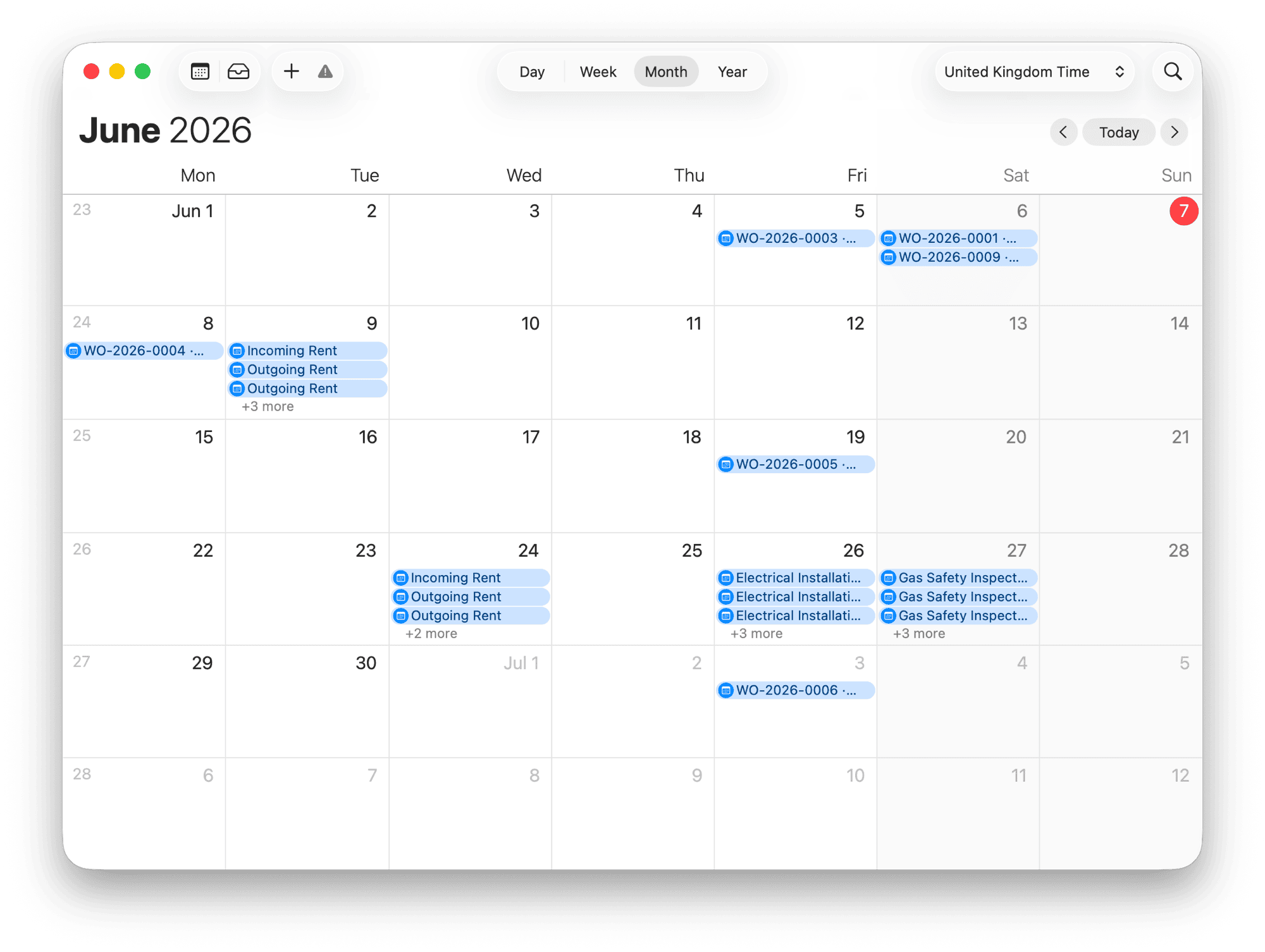
Subscribed calendars refresh on your calendar app’s own schedule — Google can take up to a day; Apple and Outlook are usually faster. That’s how calendar subscriptions work everywhere, and it’s fine for deadlines that move rarely.
Turn It On
1
Open Settings → Calendar
In the app, open Settings → Calendar and choose Connect Your Calendar.
2
Pick what to include
Tick the event types you want — compliance deadlines, lease expiries, break dates, rent reviews, rent payments, scheduled work orders. The links update live as you change the selection.
3
Add it to your calendar app
Use Add to Apple / Add to Google / Add to Outlook, or copy the subscription URL and paste it into any calendar app.
Per-Provider
Apple Calendar
Click Add to Apple (or paste the
webcal:// URL): File → New Calendar Subscription on macOS, or Settings → Calendar → Accounts → Add Subscribed Calendar on iPhone.Google Calendar
Click Add to Google, or in Google Calendar: Other calendars → From URL → paste the link.
Outlook
Click Add to Outlook, or in Outlook: Add calendar → Subscribe from web → paste the link.
Choosing What Syncs
There are two layers, so different people and different calendars can show different things:- At “Add to Calendar” — tick exactly what that subscription includes. You can add “compliance only” to a shared team calendar and “everything” to your own, from the same screen.
- Your default — Set as My Default saves your current selection as the default for the plain subscription URL, for when you subscribe from a calendar app that doesn’t let you pick types. Each person’s default is their own.
Keeping It Secure
The subscription link carries a private token, so treat it like a password.- Rotate URL issues a new link and immediately stops the old one working — use it if a link is ever shared by mistake.
- Disconnect turns the feed off entirely; the URL returns nothing until you reconnect.
Navigating the app
Where Calendar sits in the sidebar, and how property scope narrows what you see.