> ## Documentation Index
> Fetch the complete documentation index at: https://docs.proprietas.app/llms.txt
> Use this file to discover all available pages before exploring further.
# Navigating the App
> How Proprietas is laid out and where everything lives.
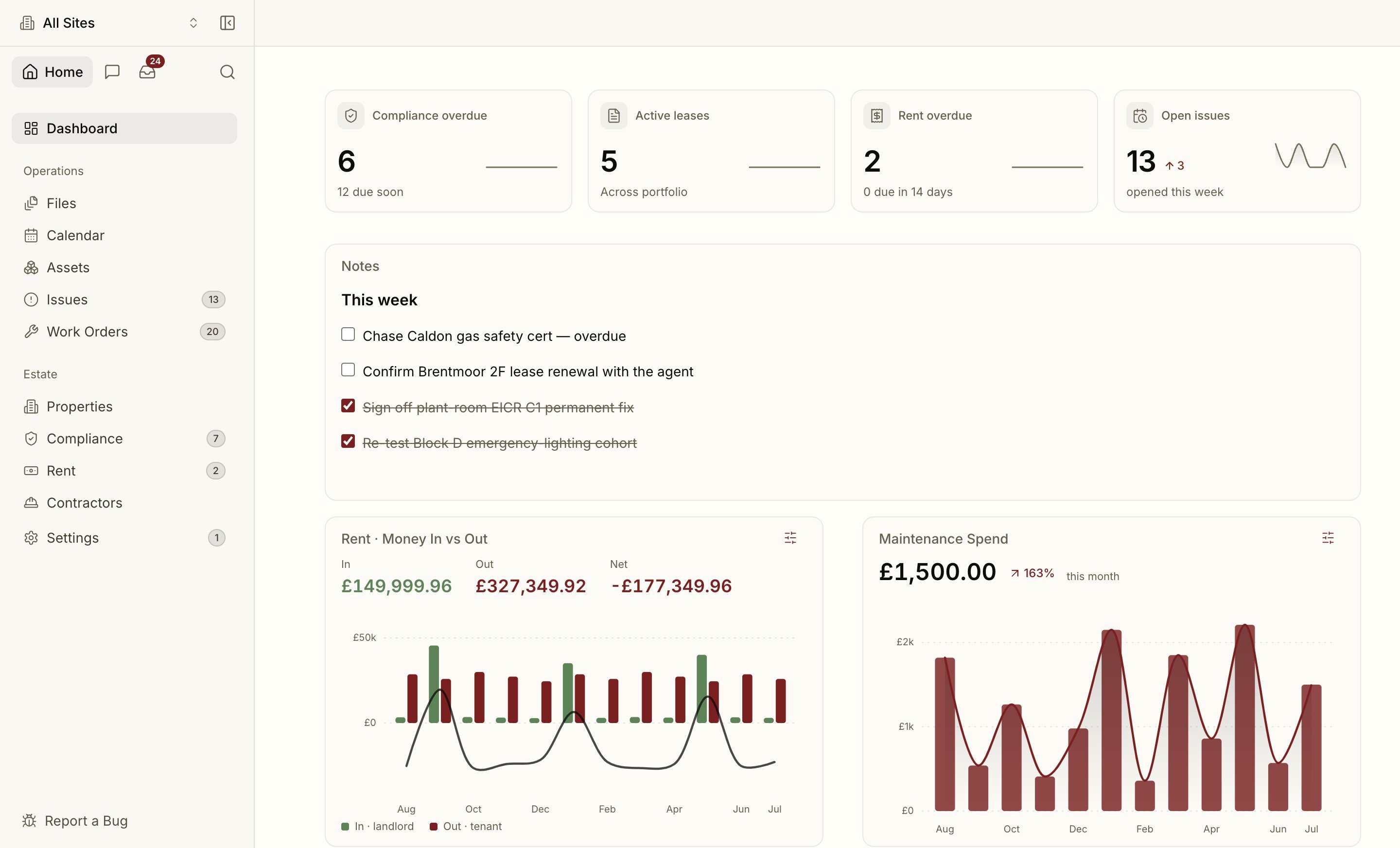
Proprietas has one consistent shell across every authenticated page: a sidebar on the left, a topbar across the top, and the page canvas in the middle. Once you know those three, you know where everything is.
 ## The Sidebar
The left sidebar is grouped by what you do — compliance, leases, facilities, documents, members. Entries show a **count badge** when something needs attention: overdue compliance items, open issues, unassigned work orders, pending document intake. A badge is a nudge, not noise — it only appears when there's something to act on.
## Property Scope
The single most important control is the **property switcher** in the topbar. Proprietas is portfolio-wide by default, but pick a property and the whole app narrows to it — every list, every status, every report now shows just that property. Your choice persists across reloads, so you can work inside one site for as long as you need, then clear it to go back to the whole portfolio.
When you see a number that surprises you, check the property scope first — you may be looking at one site rather than the whole portfolio, or vice versa.
## The Topbar
The topbar carries the property switcher, universal [search](/interface/search), the [assistant](/interface/assistant), and your notifications bell. Notifications cover the things that can't wait for you to go looking — a compliance deadline approaching, a new issue reported, a member requesting access.
## Lists and Data Grids
The high-volume surfaces — [Issues](/facilities/issues), [Work Orders](/facilities/work-orders) and [Assets](/facilities/assets) — are **spreadsheet-style data grids**. They share one toolbar (filter, sort, search and saved views), keep their header and toolbar frozen while the rows scroll, and support inline edit and keyboard navigation (see [Keyboard shortcuts](/interface/keyboard-shortcuts#data-grids)). Universal search and the assistant can drop you straight into one of these grids **pre-filtered** to the rows you asked for.
## Settings
Everything administrative lives under **Settings**, opened from the sidebar: your organisation profile, members and invitations, single sign-on and verified domains, billing and AI usage, and notification preferences. Admin-only sections are clearly marked and hidden from non-admins.
Jump anywhere with Cmd K.
Ask your portfolio anything.
## The Sidebar
The left sidebar is grouped by what you do — compliance, leases, facilities, documents, members. Entries show a **count badge** when something needs attention: overdue compliance items, open issues, unassigned work orders, pending document intake. A badge is a nudge, not noise — it only appears when there's something to act on.
## Property Scope
The single most important control is the **property switcher** in the topbar. Proprietas is portfolio-wide by default, but pick a property and the whole app narrows to it — every list, every status, every report now shows just that property. Your choice persists across reloads, so you can work inside one site for as long as you need, then clear it to go back to the whole portfolio.
When you see a number that surprises you, check the property scope first — you may be looking at one site rather than the whole portfolio, or vice versa.
## The Topbar
The topbar carries the property switcher, universal [search](/interface/search), the [assistant](/interface/assistant), and your notifications bell. Notifications cover the things that can't wait for you to go looking — a compliance deadline approaching, a new issue reported, a member requesting access.
## Lists and Data Grids
The high-volume surfaces — [Issues](/facilities/issues), [Work Orders](/facilities/work-orders) and [Assets](/facilities/assets) — are **spreadsheet-style data grids**. They share one toolbar (filter, sort, search and saved views), keep their header and toolbar frozen while the rows scroll, and support inline edit and keyboard navigation (see [Keyboard shortcuts](/interface/keyboard-shortcuts#data-grids)). Universal search and the assistant can drop you straight into one of these grids **pre-filtered** to the rows you asked for.
## Settings
Everything administrative lives under **Settings**, opened from the sidebar: your organisation profile, members and invitations, single sign-on and verified domains, billing and AI usage, and notification preferences. Admin-only sections are clearly marked and hidden from non-admins.
Jump anywhere with Cmd K.
Ask your portfolio anything.