> ## Documentation Index
> Fetch the complete documentation index at: https://docs.proprietas.app/llms.txt
> Use this file to discover all available pages before exploring further.
# Document Intake
> Drop any PDF and it files itself.
Proprietas has one front door for documents: **drop it and walk away.** Drag a PDF anywhere in the app and the system classifies it, extracts the structured data, matches it to the right site, and files it against the right obligation, lease or contractor.
 ## Drop-and-Go
Drag a file onto any page in the app — a full-screen drop zone appears and the document is taken in. You don't pre-sort into folders; the parser works out what it is:
* A gas certificate files against that site's gas-safety obligation
* A lease files against the property and builds its rent schedule
* An FRA files and surfaces its findings
* An insurance certificate, F-Gas, TM44, asbestos survey, fire-alarm or emergency-lighting report — same drop-and-go
For scanned PDFs, the overlay shows a **real page-by-page reading progress bar** — genuine progress as each page is read, not a fake spinner — so you can see a 40-page survey actually being worked through.
## The Inbox
When the parser is confident, the document lands in its final home. When it isn't — a low-confidence statutory date, an address it can't pin to one site, a document type it wants you to confirm — it lands in the **Inbox** for a quick human check.
In the Inbox you confirm or correct:
* The **document kind**
* The **site / property** it belongs to
* The **obligation** it satisfies (for certificates)
Then accept it, and it files. Reject it and it's discarded — though the record is kept for the audit trail.
This is deliberate. Statutory-compliance dates (FRA, gas, EICR expiry) are never filed automatically below a confidence bar — getting a fire-safety date wrong is exactly the failure we won't accept. Low-confidence items wait for you.
## Multi-Property Detection
If a single PDF contains text matching several of your properties — a certificate covering a whole building, say — the Inbox flags it so you can split it to the right floors rather than filing it against the wrong one.
## Smart Renaming
The files people upload are rarely named usefully — `scan_0012.pdf`, `IMG_4821.pdf`, a solicitor's reference. As it files a document, Proprietas gives it a clean, sortable **display name** built from what it read: the document's date, its kind, and the site it belongs to — e.g. *"2026-05-06 — FRA — Linwood Primary School.pdf"*.
The original filename is kept, but the readable name is what you see in lists, search and audit packs — so a folder of cryptic scans becomes a tidy, chronological record without anyone renaming a thing. You can override the display name at any time.
## Bulk Certificate Upload
Onboarding a portfolio? Drop a whole folder. Every document is classified and filed against the right site and regime in one pass.
## Organising Into Folders
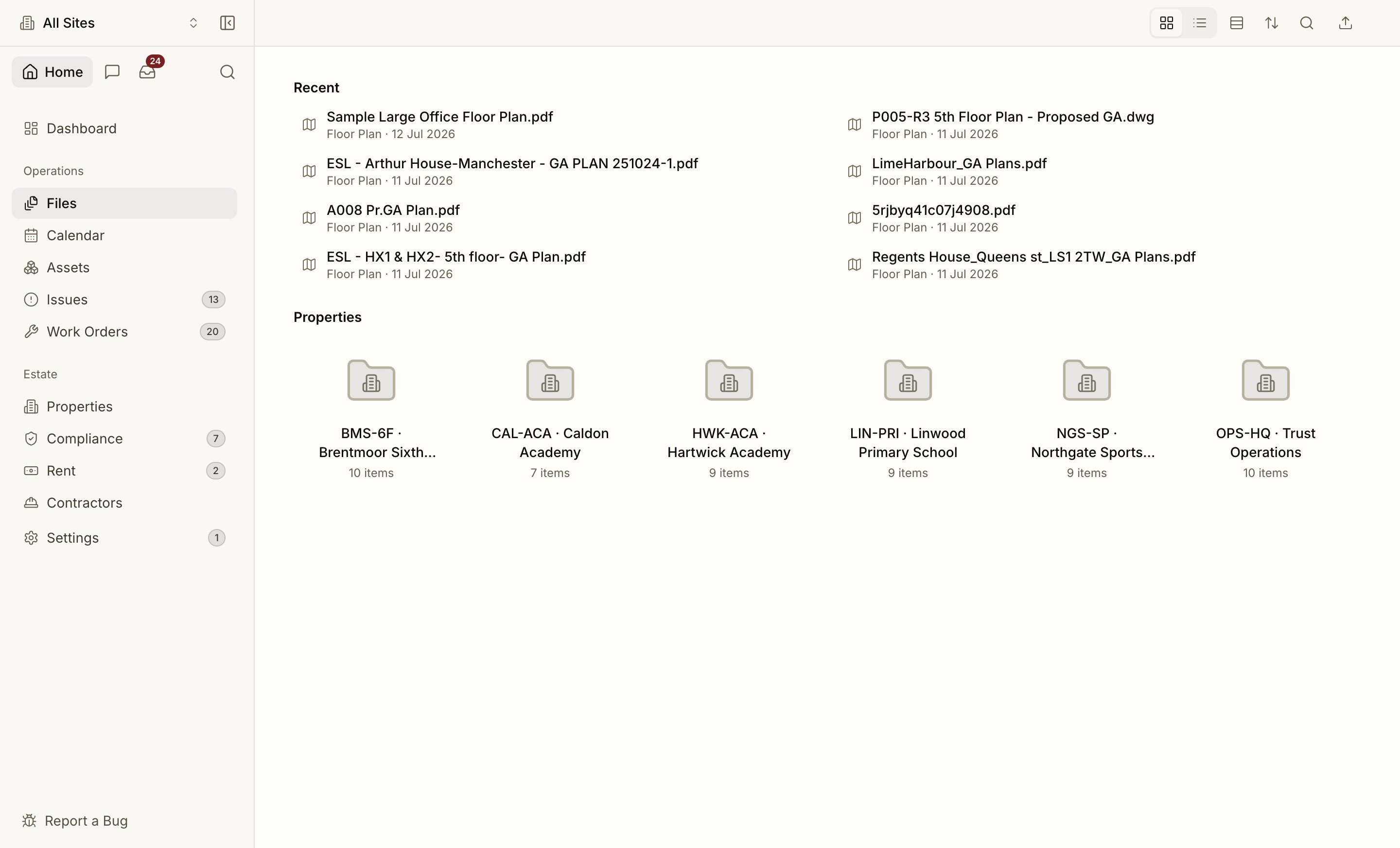
The documents view is a familiar **Finder-style** browser. Group documents into folders, give a folder a colour, and move documents between them — click, shift-click and ⌘-click to multi-select exactly the way you'd expect. Select several and **download them as a single ZIP**, with each file keeping its clean display name. Filing is automatic; folders are for the way *you* like to find things afterwards.
## Sensitive Documents
Mark any document **sensitive** and it becomes visible only to organisation admins — hidden from preview, download, ZIP export and [universal search](/interface/search) for everyone else. Use it for settlement agreements, HR letters or anything that shouldn't sit in front of the whole team. See [security](/security/overview#sensitive-documents) for exactly how the gate behaves.
Confidence, page citations and human review, explained.
## Drop-and-Go
Drag a file onto any page in the app — a full-screen drop zone appears and the document is taken in. You don't pre-sort into folders; the parser works out what it is:
* A gas certificate files against that site's gas-safety obligation
* A lease files against the property and builds its rent schedule
* An FRA files and surfaces its findings
* An insurance certificate, F-Gas, TM44, asbestos survey, fire-alarm or emergency-lighting report — same drop-and-go
For scanned PDFs, the overlay shows a **real page-by-page reading progress bar** — genuine progress as each page is read, not a fake spinner — so you can see a 40-page survey actually being worked through.
## The Inbox
When the parser is confident, the document lands in its final home. When it isn't — a low-confidence statutory date, an address it can't pin to one site, a document type it wants you to confirm — it lands in the **Inbox** for a quick human check.
In the Inbox you confirm or correct:
* The **document kind**
* The **site / property** it belongs to
* The **obligation** it satisfies (for certificates)
Then accept it, and it files. Reject it and it's discarded — though the record is kept for the audit trail.
This is deliberate. Statutory-compliance dates (FRA, gas, EICR expiry) are never filed automatically below a confidence bar — getting a fire-safety date wrong is exactly the failure we won't accept. Low-confidence items wait for you.
## Multi-Property Detection
If a single PDF contains text matching several of your properties — a certificate covering a whole building, say — the Inbox flags it so you can split it to the right floors rather than filing it against the wrong one.
## Smart Renaming
The files people upload are rarely named usefully — `scan_0012.pdf`, `IMG_4821.pdf`, a solicitor's reference. As it files a document, Proprietas gives it a clean, sortable **display name** built from what it read: the document's date, its kind, and the site it belongs to — e.g. *"2026-05-06 — FRA — Linwood Primary School.pdf"*.
The original filename is kept, but the readable name is what you see in lists, search and audit packs — so a folder of cryptic scans becomes a tidy, chronological record without anyone renaming a thing. You can override the display name at any time.
## Bulk Certificate Upload
Onboarding a portfolio? Drop a whole folder. Every document is classified and filed against the right site and regime in one pass.
## Organising Into Folders
The documents view is a familiar **Finder-style** browser. Group documents into folders, give a folder a colour, and move documents between them — click, shift-click and ⌘-click to multi-select exactly the way you'd expect. Select several and **download them as a single ZIP**, with each file keeping its clean display name. Filing is automatic; folders are for the way *you* like to find things afterwards.
## Sensitive Documents
Mark any document **sensitive** and it becomes visible only to organisation admins — hidden from preview, download, ZIP export and [universal search](/interface/search) for everyone else. Use it for settlement agreements, HR letters or anything that shouldn't sit in front of the whole team. See [security](/security/overview#sensitive-documents) for exactly how the gate behaves.
Confidence, page citations and human review, explained.